
Open the workspace and read the upload requirements. They tell you which photo type and framing give the cleanest result.
What the AI Heaven Effect Does
Create a quiet symbolic memorial scene with soft light and restrained respectful motion. It works as a ready-made recipe: the model, prompt and style or motion settings are already chosen, so the only thing you supply is a source photo. That keeps results consistent from one run to the next and saves you from writing a long prompt or learning editing software.
The output is a short video clip that you can download as an MP4 and post directly or drop into a longer edit. Because the motion is generated from your picture, the people, pet or scene in it stay recognizable while the camera, lighting and movement change around them. Typical clips last a few seconds, which suits loops, stories and short-form feeds.
Think of it as a strong starting point rather than a final edit. Many people generate two or three versions from slightly different photos, keep the best one and then trim, caption or add music in their usual app. Nothing is installed and your original file is never changed, so trying an idea only costs the credits for that single run. If a result misses, the most useful fix is usually a better source photo, not a longer instruction.
Who This Effect Is For
- Social creators who want a short, eye-catching clip for Reels, Shorts or TikTok without opening editing software.
- Families and friends turning a favourite photo into a keepsake, a greeting or a message for a special day.
- Small brands and marketers testing visual ideas for ads, product pages or campaigns before paying for a shoot.
- Designers, writers and storytellers who need a fast reference for mood, motion or style during early concept work.
- Anyone curious to see a familiar photo in a new way, using nothing more than a browser and a few credits.
What you need before you start
These are the inputs and settings the workspace will ask for, so you can pick the right photo and format before you begin.
What to upload
- Reference 1 (required)Use a sharp image with the subject unobstructed and enough room for motion.
Settings you can choose
- Output
- AI video
- Prompt
- Preset by the effect, so there is nothing to write.
The credit cost appears on the Generate button before you confirm, and every finished result is saved to My Creations.
AI Heaven Ideas Worth Trying
Start with a source that has one obvious focal point. Try a clean portrait, product, pet, illustration or scene that matches the effect. Change framing or mood between generations instead of crowding one request with unrelated ideas.
How to Use AI Heaven in EveryGen
Upload a clear file you own or have permission to use. The main subject should be sharp, well lit and fully visible.
Generate, then compare the result in My Creations. If you want another version, change one detail at a time.
Why Create with AI Heaven
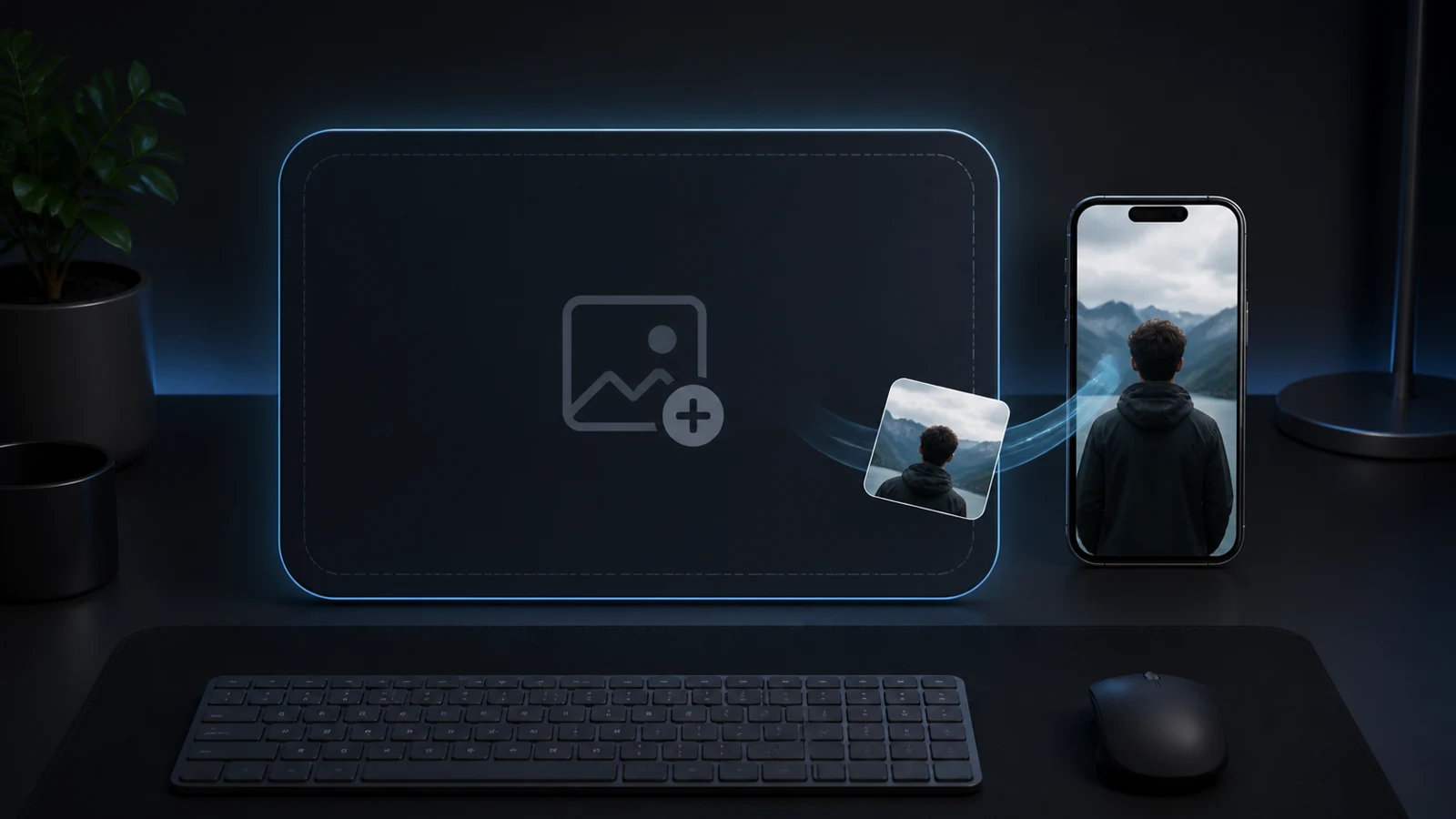
A Clear Starting Point
Everything starts from a focused upload instead of a complicated editing timeline. You keep control of the subject while the effect handles the visual transformation.
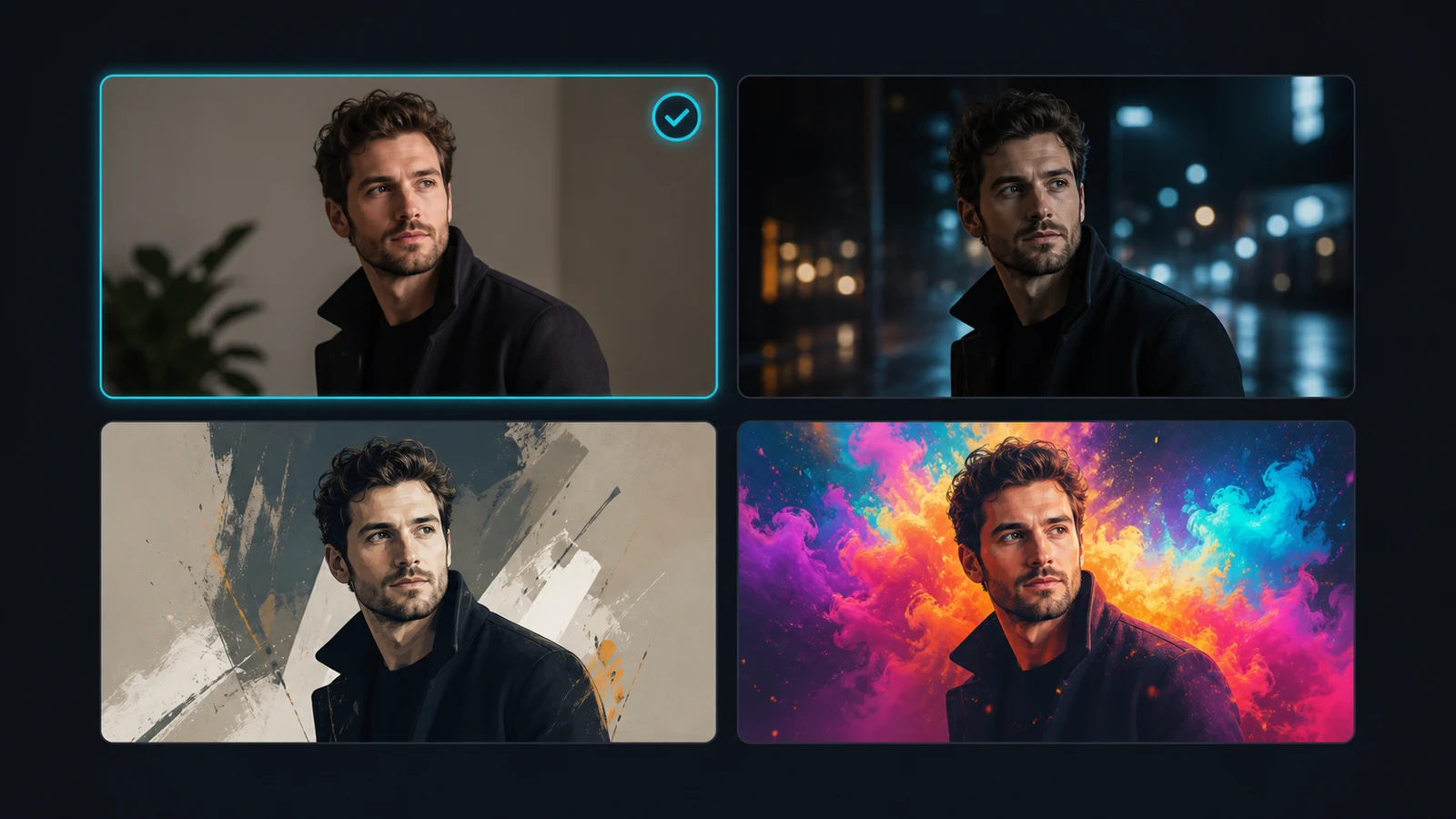
Built for Quick Iteration
Compare several directions without rebuilding the project. Small changes to the source or prompt make it practical to test framing, mood and detail.
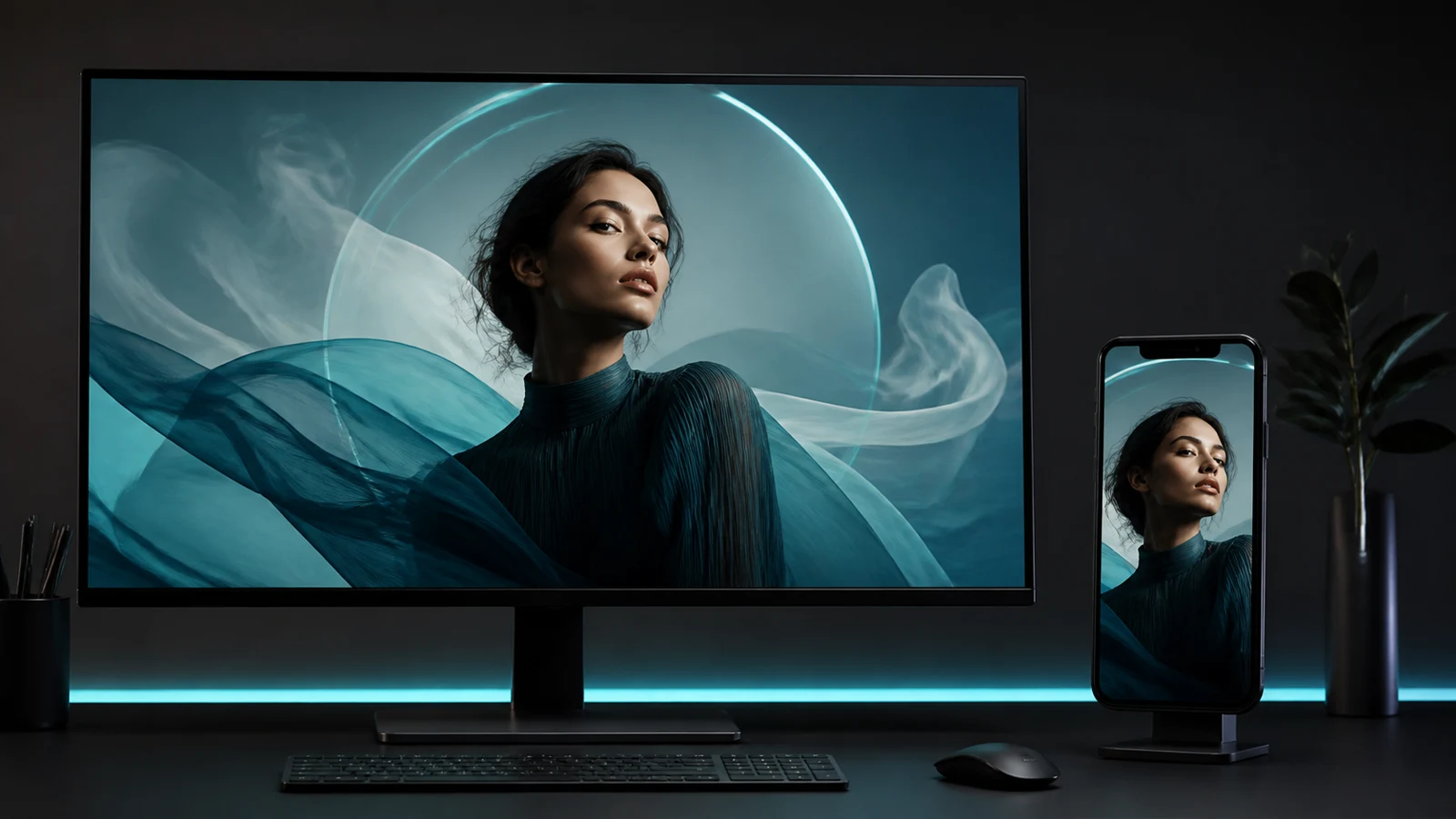
Results That Stay Usable
The effect favours a recognizable subject, coherent lighting and a clean composition, so the finished video can work in posts, concepts or personal projects.
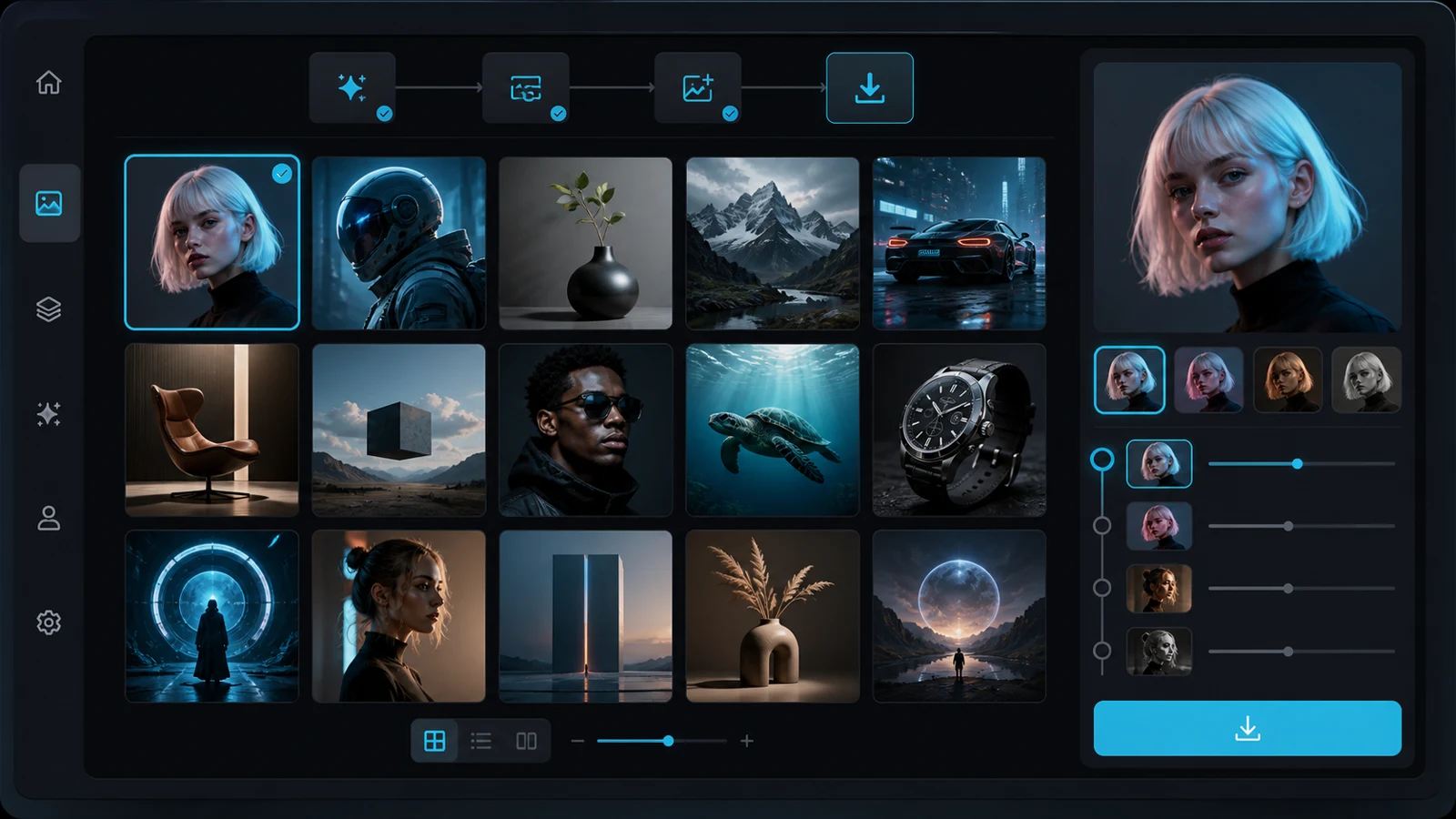
One Connected Workflow
Every result stays in EveryGen My Creations. Review versions, download the strongest one and come back to the same effect whenever you want another variation.
How It Compares with Similar Effects
If this is not quite the look you want, these related templates solve a nearby problem in a different way:
- AI Smile — Add a small natural smile to a consenting adult portrait without changing identity or facial structure.
- AI Shadow Clone — Create synchronized shadow-like copies around one stable subject with clean entrances and exits.
- AI Analog Horror — Turn an ordinary image into unsettling fictional found footage without gore or real-world threats.
Stay with this one when you want to create a quiet symbolic memorial scene with soft light and restrained respectful motion. Every effect page shows examples, so comparing two of them takes less than a minute.
AI Heaven FAQ
It is a focused EveryGen effect that turns a suitable source into a polished video. The settings are packaged into a guided workflow, so you can concentrate on the source and the creative direction.
Open the workspace, upload the requested source, check the preview and generate. The controls stay concise, and the finished result is stored in My Creations for later review or download.
A sharp, well-lit source where the main subject is easy to identify. Avoid severe blur, blocked faces, tiny subjects and clutter that competes with the transformation.
You can open the effect and prepare a project without installing software. Free credits depend on the current EveryGen account offer, and the required credits are shown before generation.
It is designed to keep the important identity, pose and composition cues from the source. Results can still vary, so a clear upload and a restrained direction usually give the most stable outcome.
The effect does not change who owns your source material. Commercial use requires rights to every uploaded image, person, logo and design, plus compliance with the applicable model and EveryGen terms.
Simplify the background, keep the subject fully visible and change one creative variable at a time. Comparing small iterations is more reliable than combining many conflicting instructions.
Yes. It runs in a modern browser on desktop and mobile. A larger screen helps when comparing details, while a phone is convenient for uploading a photo and reviewing a quick result.
More AI Effects
bulin 47 ai video generatorAI Football Championship 2026AI Movie CameoAI GugugagaAI Aging & De-agingAI Baby DanceAI SmileAI Fighting VideoAI PaintingAI Palm ReadingAI Shadow CloneAI MovieAI MuscleAI Video AdsAI Anime to Real LifeAI Analog HorrorAI StoryboardAI VampireAI MermaidAI 2D to 3DAI Live PortraitAI Room DesignAI Live BaseballAI DanceAI HanfuAI Background ChangerAI Life 4 CutsAI Bullet TimeAI Spring PortraitsAI Photo to AnimeAI HeadshotAI HairstyleAI Action FigureAI FursonaAI Fisheye LensAI Mini MeAI Dog GeneratorAI ASMRAI Earth ZoomAI Baby
Create Stunning AI Videos
All in One Stop
EveryGen replaces complex tools — faster, smarter, and more affordable.